


How to connect KTP700 to a PLC?
Oct 09, 2025
Leave a message
As a supplier of KTP700, I often receive inquiries from customers about how to connect the KTP700 to a PLC. In this blog post, I will provide a detailed guide on this process, covering everything from the necessary hardware and software to the step-by-step connection procedures.
Understanding the Basics
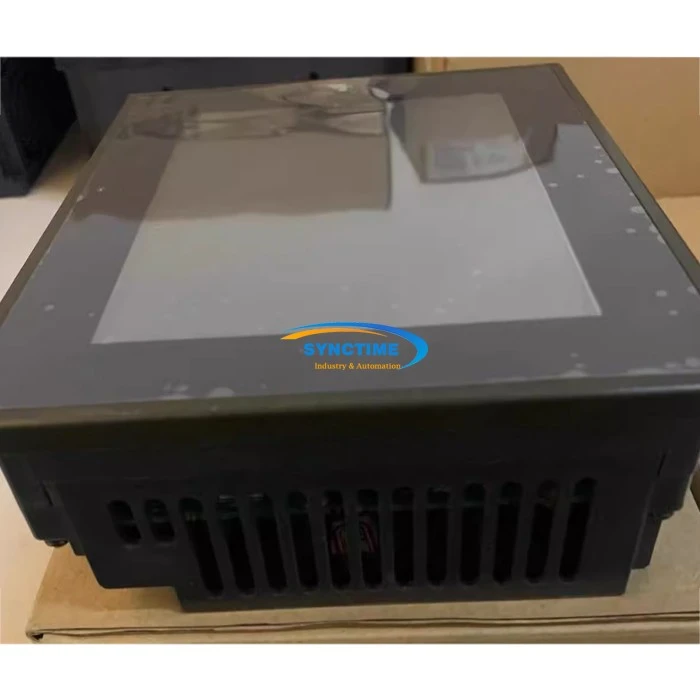
Before diving into the connection process, it's important to understand the key components involved. The KTP700 is a Human - Machine Interface (HMI) device manufactured by Siemens. It allows operators to interact with a Programmable Logic Controller (PLC) by providing a graphical interface to monitor and control industrial processes. PLCs, on the other hand, are used to automate and control machinery and processes in various industries.
Necessary Hardware
To connect the KTP700 to a PLC, you will need the following hardware:
- KTP700 HMI: This is the main device that will serve as the interface for operators.
- PLC: Depending on your application, you can choose from different models of PLCs, such as Siemens S7 - series PLCs.
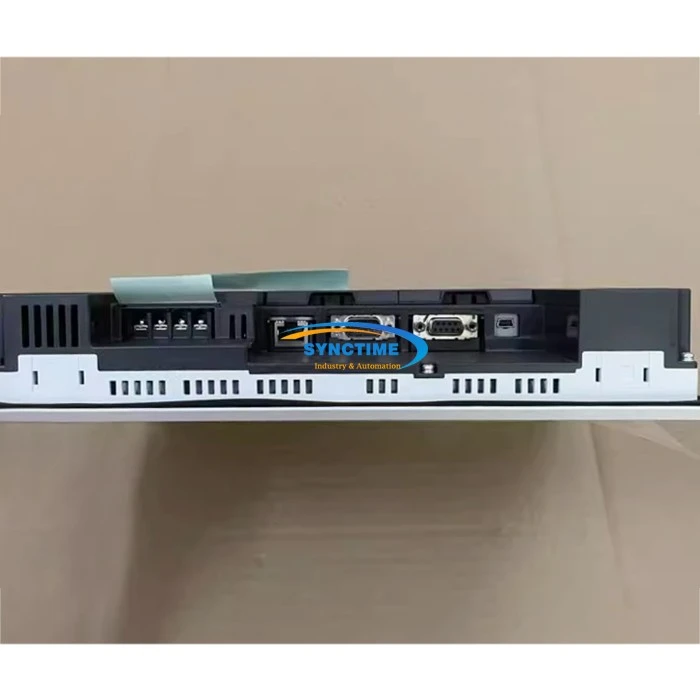
- Communication Cables: The type of cable required depends on the communication protocol used between the KTP700 and the PLC. For example, if using Profibus, you will need a Profibus cable; if using Ethernet, an Ethernet cable will be required.
- Power Supply: Ensure that both the KTP700 and the PLC are properly powered.
Necessary Software
- WinCC flexible: This is the software used to configure the KTP700. It allows you to create screens, define variables, and set up communication with the PLC.
- PLC Programming Software: For example, if you are using a Siemens S7 - 1200 PLC, you will need TIA Portal to program and configure the PLC.
Step - by - Step Connection Process
Step 1: Install and Configure WinCC flexible
- Installation: Insert the WinCC flexible installation CD or download the software from the official Siemens website. Follow the installation wizard to complete the installation process.
- Project Creation: Open WinCC flexible and create a new project. Select the KTP700 as the target device.
- Screen Design: Design the screens according to your application requirements. You can add buttons, text boxes, graphs, and other graphical elements to display and control the process variables.
Step 2: Program and Configure the PLC
- PLC Programming: Use the appropriate PLC programming software to write the control logic for your application. Define the input and output variables that will be used for communication with the KTP700.
- Communication Setup: Configure the communication settings in the PLC programming software. For example, if using Profibus, set up the Profibus master or slave parameters.
Step 3: Establish Communication between KTP700 and PLC
- Communication Configuration in WinCC flexible: In the WinCC flexible project, go to the communication settings. Select the appropriate communication driver based on the communication protocol used between the KTP700 and the PLC. For example, if using Profibus, select the Profibus driver.
- Address Assignment: Assign the addresses of the PLC variables to the corresponding variables in the WinCC flexible project. This ensures that the KTP700 can read and write data to the PLC.
- Testing the Connection: After configuring the communication settings, perform a test connection to verify that the KTP700 can communicate with the PLC. You can use the diagnostic tools in WinCC flexible to check for any communication errors.
Troubleshooting Common Issues
Even with proper configuration, you may encounter some issues during the connection process. Here are some common problems and their solutions:
- Communication Failure: Check the communication cables for any loose connections or damage. Ensure that the communication settings in both the KTP700 and the PLC are correctly configured.
- Variable Reading/Writing Errors: Verify that the variable addresses in the KTP700 and the PLC match. Check the data types of the variables to ensure compatibility.
- Software Compatibility Issues: Make sure that the versions of WinCC flexible and the PLC programming software are compatible with each other.
Other HMI Options
While the KTP700 is a reliable and popular HMI device, there are other options available in the market. For example, you can explore the GT2510 - VTWD Features Human - Machine Interfaces, A951GOT - SBD Touch Screen, and GP2301 - TC41 - 24V GP2300 - TC41 - 24V HMI. These HMIs offer different features and capabilities, and you can choose the one that best suits your specific application requirements.
Conclusion
Connecting the KTP700 to a PLC is a crucial step in implementing an effective industrial control system. By following the steps outlined in this blog post, you can ensure a successful connection. However, if you encounter any difficulties or need further assistance, do not hesitate to contact us. As a professional KTP700 supplier, we have a team of experts who can provide you with technical support and guidance. Whether you are a small - scale manufacturer or a large - scale industrial enterprise, we can offer you high - quality KTP700 devices and comprehensive solutions. If you are interested in purchasing KTP700 or discussing your specific needs, please feel free to reach out to us for a detailed procurement negotiation.
References
- Siemens WinCC flexible User Manual
- Siemens PLC Programming Manuals
Send Inquiry