


How to import and export data on the KTP700?
Jan 22, 2026
Leave a message
As a well - established supplier of the KTP700, I've witnessed many customers grappling with the process of importing and exporting data on this device. In this blog, I'll share comprehensive insights and step - by - step guides to help you master these operations.
Understanding the KTP700
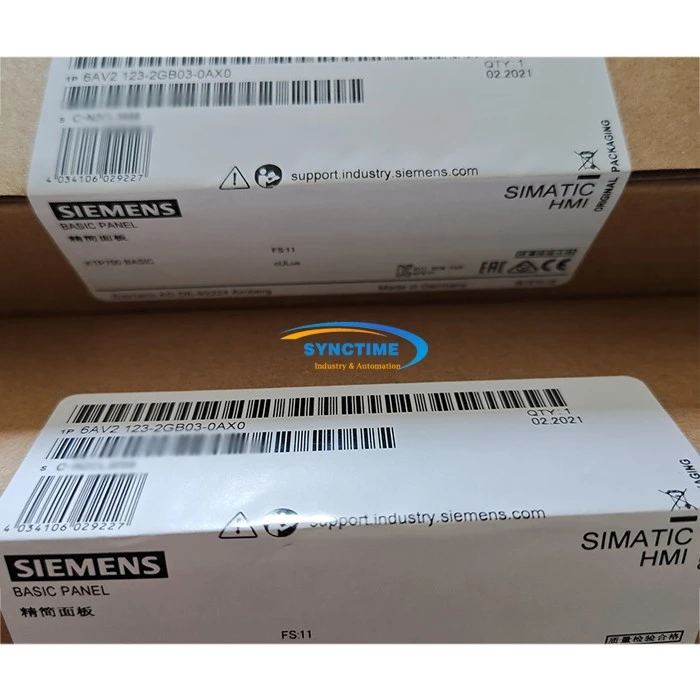
Before delving into the data import and export procedures, it's essential to understand the KTP700. The 6AV2123 - 2GB03 - 0AX0 KTP700 HMI BASIC PANEL is a high - quality Human - Machine Interface (HMI) device from Siemens. It offers a user - friendly touch screen interface, which is crucial for interacting with industrial automation systems. With its reliable performance and intuitive design, it has become a popular choice in various industrial applications.
Why Import and Export Data?
There are several reasons why you might need to import and export data on the KTP700. For instance, when you are setting up a new project, you may want to import pre - configured settings from another device or a backup file. On the other hand, exporting data can be useful for archiving, sharing information with colleagues, or performing data analysis off - site.
Prerequisites
Before you start importing or exporting data, make sure you have the following:
- A Compatible Storage Device: You'll need a USB flash drive or an SD card with sufficient storage space. Make sure the device is formatted correctly (usually FAT32).
- Proper Software Installation: Ensure that the KTP700 is running the latest firmware version. You may also need to have the appropriate programming software installed on your computer, such as WinCC flexible or TIA Portal, depending on your specific requirements.
Exporting Data from the KTP700
The process of exporting data from the KTP700 is relatively straightforward. Here are the steps:
- Prepare the Storage Device: Insert the USB flash drive or SD card into the appropriate slot on the KTP700.
- Access the Export Function: Navigate to the main menu on the KTP700 touch screen. Look for the "Data Management" or "Export" option. The exact location may vary depending on the firmware version.
- Select the Data to Export: You can choose to export different types of data, such as configuration files, alarm logs, or historical data. Select the relevant data you want to export.
- Choose the Destination: Select the connected storage device as the destination for the exported data.
- Start the Export Process: Confirm your selection and start the export process. The KTP700 will copy the selected data to the storage device. This may take a few minutes, depending on the amount of data.
- Remove the Storage Device: Once the export is complete, safely remove the storage device from the KTP700.
Importing Data to the KTP700
Importing data to the KTP700 follows a similar process. Here's how you can do it:
- Prepare the Storage Device: Copy the data you want to import onto the USB flash drive or SD card. Make sure the data is in the correct format and compatible with the KTP700.
- Insert the Storage Device: Insert the storage device into the KTP700.
- Access the Import Function: Navigate to the main menu on the KTP700 and find the "Data Management" or "Import" option.
- Select the Source: Select the connected storage device as the source of the data.
- Choose the Data to Import: Select the specific data files you want to import.
- Start the Import Process: Confirm your selection and start the import process. The KTP700 will read the data from the storage device and integrate it into the system.
- Verify the Import: After the import is complete, verify that the data has been successfully imported. You can check the relevant settings or data displays on the KTP700.
Troubleshooting
Even though the process is generally smooth, you may encounter some issues. Here are some common problems and their solutions:
- Storage Device Not Recognized: Make sure the storage device is properly inserted and formatted correctly. Try using a different storage device to see if the problem persists.
- Data Format Error: Ensure that the data you are trying to import is in the correct format. Some data may need to be converted or adjusted before it can be imported.
- Import/Export Failure: Check if there are any error messages on the KTP700 screen. These messages can provide clues about the problem. You may also need to check the firmware version and update it if necessary.
Comparison with Other HMI Devices
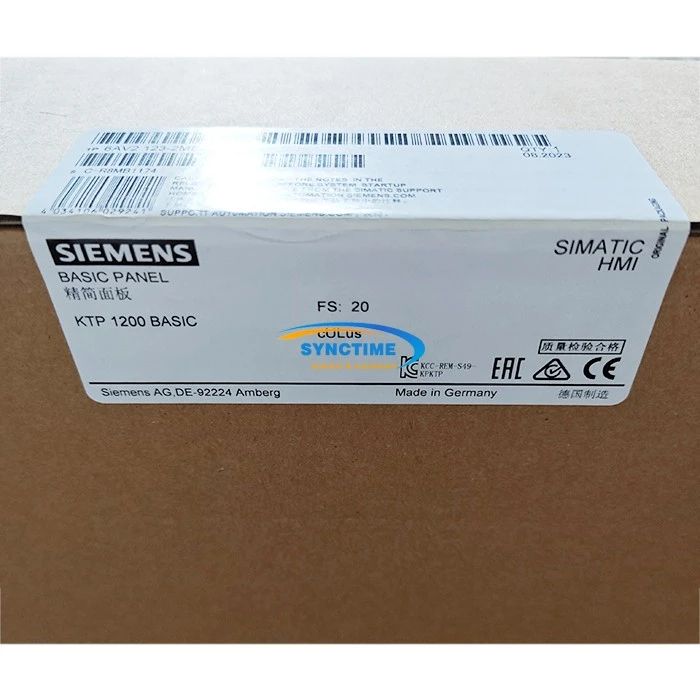
When considering HMI devices, it's always a good idea to compare different models. For example, the 6AV2123 - 2MB03 - 0AX0 HMI KTP1200 Basic Panel SIMATIC Siemens offers a larger screen size compared to the KTP700, which may be more suitable for applications that require more detailed visualizations. On the other hand, the A951GOT - SBD Touch Screen has its own unique features and user - interface design. However, the KTP700 stands out for its reliability and seamless integration with Siemens automation systems.
Conclusion
Importing and exporting data on the KTP700 is an essential skill for anyone working with this device. By following the steps outlined in this blog, you can efficiently manage your data and ensure the smooth operation of your industrial automation systems. Whether you are setting up a new project, performing maintenance, or analyzing data, the ability to import and export data will greatly enhance your productivity.
If you are interested in purchasing the KTP700 or have any questions regarding data import and export, feel free to contact us for further discussion. We are here to provide you with the best solutions and support for your industrial automation needs.
References
- Siemens WinCC flexible User Manual
- TIA Portal Documentation
- Industrial Automation Handbook
Send Inquiry