


How to calibrate the touch - screen of KTP700?
Nov 18, 2025
Leave a message
Hey there! As a supplier of the KTP700, I often get asked about how to calibrate its touch - screen. It's a crucial process that ensures the device functions smoothly and accurately. So, in this blog, I'm gonna walk you through the steps to calibrate the touch - screen of the KTP700.
First off, let's understand why calibration is so important. A calibrated touch - screen means that when you tap or swipe on the screen, the device responds exactly as you expect it to. If the touch - screen isn't calibrated correctly, you might find that your taps register in the wrong place, or you have to press really hard to get a response. This can be super frustrating, especially if you rely on the KTP700 for important industrial operations.
Before we start the calibration process, make sure you have a clean and stable surface for the KTP700. Any dirt or debris on the screen can interfere with the calibration. Also, ensure that the device is powered on and running properly.
The calibration process for the KTP700 is relatively straightforward. Here are the steps:
Step 1: Access the Calibration Menu
To begin, you need to access the calibration menu. On the KTP700, this is usually done through the system settings. Navigate to the settings menu on the device. You can do this by tapping on the settings icon, which is typically located in the corner of the screen. Once you're in the settings menu, look for an option related to the touch - screen or display. There should be a sub - option for calibration.
Step 2: Start the Calibration
Once you've found the calibration option, tap on it to start the process. The screen will then display a series of calibration points. These points are usually small crosshairs or dots that are placed at different locations on the screen.
Step 3: Follow the Instructions
The KTP700 will guide you through the calibration process. It will prompt you to tap on each calibration point with a stylus or your finger. Make sure you tap the center of each point as accurately as possible. The device will record the location of your taps and use this data to calibrate the touch - screen.
Step 4: Complete the Calibration
After you've tapped on all the calibration points, the device will analyze the data and adjust the touch - screen settings accordingly. Once the calibration is complete, you'll see a confirmation message on the screen.
That's it! Your KTP700 touch - screen should now be calibrated and working properly.
Now, let's talk about some common issues you might encounter during the calibration process and how to fix them.
Problem 1: Inaccurate Calibration
If you find that the touch - screen is still not responding accurately after calibration, it could be because you didn't tap the calibration points precisely. Try repeating the calibration process, making sure to tap the center of each point.
Problem 2: Calibration Points Not Displaying
If the calibration points don't appear on the screen, there could be a software issue. Try restarting the KTP700 and then accessing the calibration menu again. If the problem persists, you might need to update the device's software.
Problem 3: Touch - Screen Not Responding at All
If the touch - screen doesn't respond at all during the calibration process, it could be a hardware problem. Check the connections between the touch - screen and the device. Make sure there are no loose cables or damaged components. If you're still having trouble, it might be time to contact a professional technician.
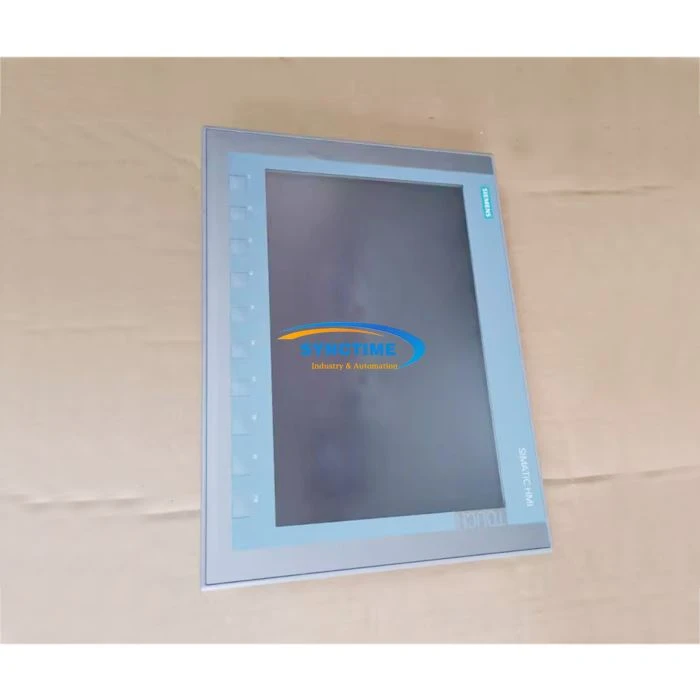
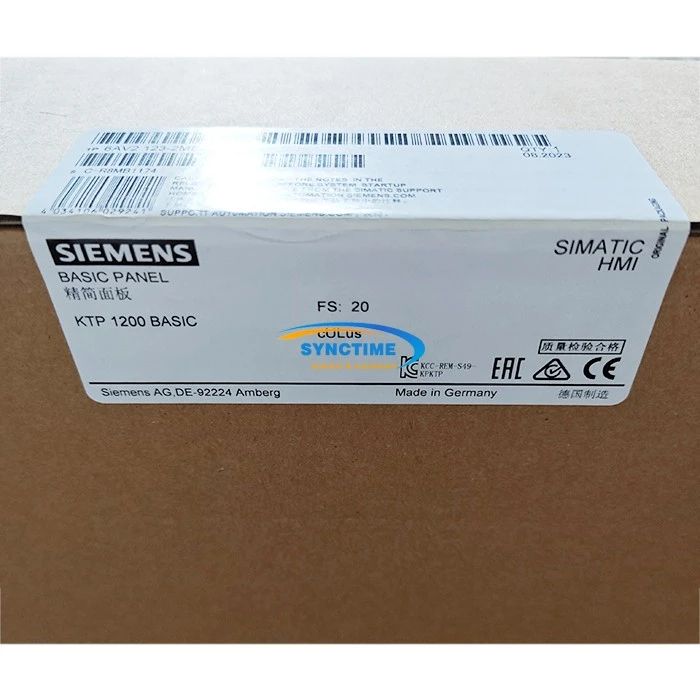
As a KTP700 supplier, I also want to mention some other great touch - screen products that we offer. For example, the GLC2300 - LG41 - 24V Touch Screen is a high - quality option for industrial applications. It offers excellent touch sensitivity and durability. Another great product is the A951GOT - SBD Touch Screen, which is known for its user - friendly interface and reliable performance. And if you're looking for a larger touch - screen option, the 6AV2123 - 2MB03 - 0AX0 HMI KTP1200 Basic Panel SIMATIC Siemens is a great choice.
If you're interested in purchasing the KTP700 or any of our other touch - screen products, don't hesitate to reach out. We're here to help you find the right solution for your industrial needs. Whether you're a small business or a large corporation, we can provide you with high - quality products and excellent customer service.
In conclusion, calibrating the touch - screen of the KTP700 is a simple but important process. By following the steps outlined in this blog, you can ensure that your device is working at its best. And if you have any questions or need further assistance, feel free to contact us. We're always happy to help.
References
- Siemens KTP700 User Manual
- Industrial Automation Touch - Screen Technology Guides
Send Inquiry