


What are the input options available on an HMI touch screen?
Jan 02, 2026
Leave a message
Yo, what's up everyone! As a supplier of HMI touch screens, I'm stoked to chat with you about the input options available on these nifty devices. HMI, or Human-Machine Interface, touch screens are all over the place in industrial settings, automation systems, and even consumer electronics. They're the bridge between us humans and the machines, allowing us to interact with them in a super intuitive way. So, let's dive right into the different input options you can find on an HMI touch screen.
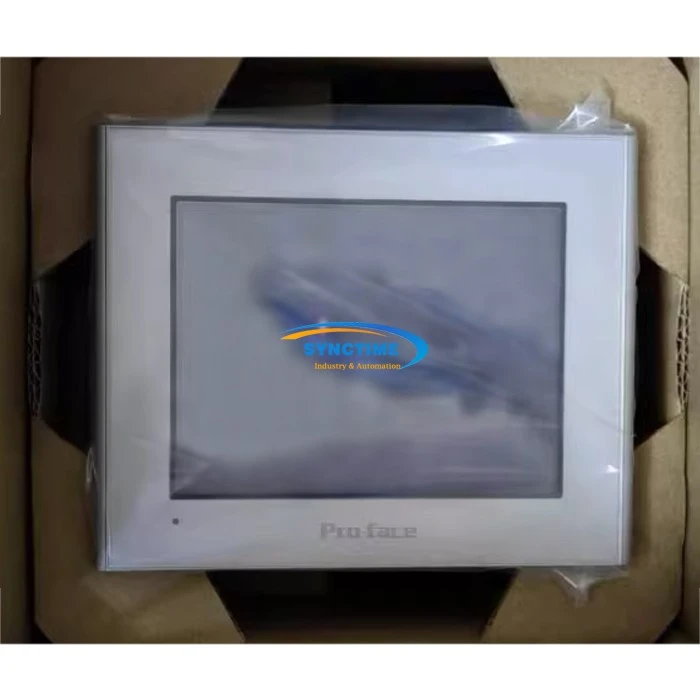
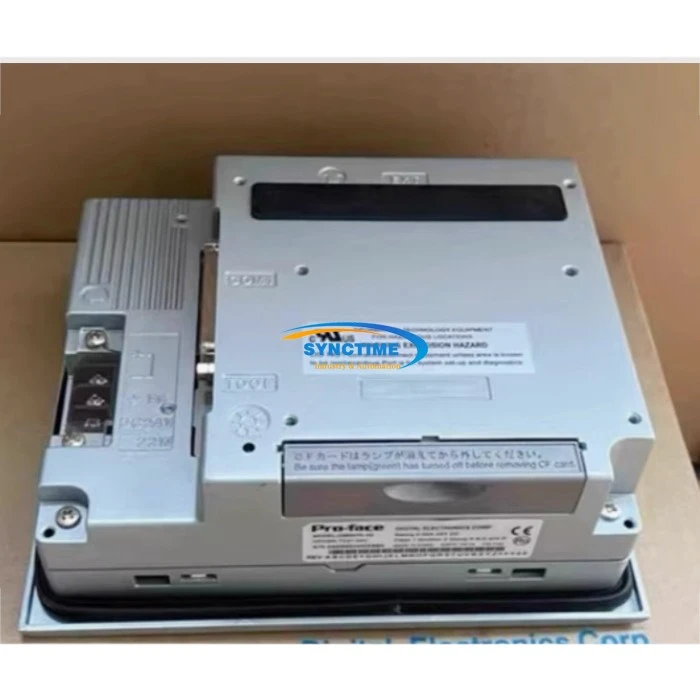
1. Touch Input
Let's start with the most obvious one - touch input. This is the bread and butter of HMI touch screens. You simply use your fingers to tap, swipe, pinch, or spread on the screen to command the system. It's like how you use your smartphone, but in a more industrial - grade setup.
The beauty of touch input is its simplicity. Even if you're not a tech wizard, you can pick it up pretty quickly. There are different types of touch technologies used in HMI touch screens, like resistive and capacitive touch.
- Resistive Touch: This type of touch screen consists of two conductive layers separated by a small gap. When you press down on the screen, the two layers make contact at that point, and the system can detect the touch. Resistive touch screens are great because they can be operated with gloves or a stylus. They're often used in industrial environments where workers might need to wear protective gear. For example, in a manufacturing plant where there are sharp objects or chemicals, being able to use the HMI touch screen with gloves is a huge plus.
- Capacitive Touch: Capacitive touch screens use the electrical conductivity of your body to detect touch. When you touch the screen, it disturbs the electrostatic field, and the system can figure out where you touched. Capacitive touch screens offer a more responsive and accurate touch experience compared to resistive ones. They usually support multi - touch gestures, which means you can do things like zooming in and out by pinching or spreading your fingers. You can find capacitive touch screens in modern HMI setups for applications where precision and a more consumer - like experience are needed. If you're looking for a high - quality HMI with touch input options, you might want to check out the GP2301 - TC41 - 24V GP2300 - TC41 - 24V HMI. It offers a great touch experience and is suitable for a variety of industrial applications.
2. Keypad Input
Some HMI touch screens also come with a virtual or physical keypad.
- Virtual Keypad: A virtual keypad is displayed on the touch screen itself. You can use it to enter numbers, letters, or special characters. It's a flexible option because the layout can be customized according to your needs. For example, in a control system where you need to enter specific commands or parameter values, a virtual keypad can be very handy. You can program it to have different button layouts depending on the mode of operation.
- Physical Keypad: Physical keypads are separate hardware components attached to the HMI touch screen. They offer a more tactile and durable input option. In industrial environments with a lot of vibration or rough handling, a physical keypad might be preferred over a virtual one. Physical keypads can be especially useful for applications where quick and accurate input is crucial, like in a financial transaction or a data - entry - intensive task. The GLC2300 - LG41 - 24V Touch Screen may come with options for both virtual and physical keypad input, giving you more flexibility in how you interact with the system.
3. Gesture Input
Gesture input is becoming more and more popular in HMI touch screens. With gesture input, you can perform actions like swiping up, down, left, or right, as well as rotating or shaking motions.
- Pre - defined Gestures: Most HMI touch screens come with a set of pre - defined gestures. For example, swiping left might be used to go to the previous screen, while swiping right could take you to the next one. These pre - defined gestures make the interaction with the system more intuitive and faster.
- Customizable Gestures: Some advanced HMI touch screens allow you to customize gestures according to your specific needs. You can assign certain functions to specific gestures, which can be really useful in specialized applications. Gesture input is perfect for situations where you want to perform quick actions without having to tap on a specific button. It can improve the overall efficiency of using the HMI touch screen.
4. Voice Input
Voice input is another exciting input option in modern HMI touch screens. With voice input, you can simply speak commands to the system instead of using your fingers or a keypad.
- Voice Recognition Technology: HMI touch screens with voice input use advanced voice recognition technology to understand your commands. You can use it to perform tasks like starting a machine, changing settings, or retrieving information. Voice input is extremely convenient, especially in situations where your hands are busy or dirty. For example, in a manufacturing floor where workers are handling tools or materials, they can use voice commands to operate the HMI touch screen without having to touch it directly.
- Multilingual Support: Many voice - input HMI touch screens support multiple languages, which is great for international operations or in a diverse work environment. However, the accuracy of voice input can be affected by background noise or accents, so it's not always a perfect solution, but it's definitely a growing trend. An example of a high - end HMI with potential voice - input capabilities is the 6AV2123 - 2MB03 - 0AX0 HMI KTP1200 Basic Panel SIMATIC Siemens.
5. Stylus Input
Stylus input is useful when you need more precision.
- Precision Drawing or Editing: If you're working on an application that requires detailed drawing or editing, a stylus can be a game - changer. You can use it to draw diagrams, annotate images, or enter handwritten notes. Stylus input is often used in design, engineering, and medical applications.
- Pressure Sensitivity: Some styli come with pressure - sensitivity features. This means that the thickness of the line you draw can vary depending on how hard you press the stylus on the screen. It gives you more control and a more natural writing or drawing experience.
Why Choosing the Right Input Option Matters
Picking the right input option for your HMI touch screen is super important. It can affect the efficiency, usability, and overall performance of your system. For example, if your workers are constantly wearing gloves in a cold environment, a resistive touch screen or a physical keypad would be a better choice. On the other hand, if you're aiming for a modern and user - friendly interface with quick interactions, touch gestures and voice input might be more suitable.
Let's Connect!
If you're in the market for an HMI touch screen and have questions about the input options or want to discuss which product is best for your needs, feel free to get in touch. We're here to help you make the right decision and ensure that you get the most out of your HMI touch screen. Whether you need a simple touch - only screen or a high - end device with multiple input options, we've got you covered.
References
- Industrial Control and Automation Handbook
- Various HMI Touch Screen Manufacturer Whitepapers
Send Inquiry