


How to troubleshoot a slow - responding HMI touch screen?
Jan 06, 2026
Leave a message
As a seasoned HMI touch screen supplier, I've encountered numerous clients facing the frustrating issue of slow - responding HMI touch screens. In this blog post, I'll share some comprehensive troubleshooting steps to help you diagnose and resolve this problem effectively.
1. Check the Physical Connections
The first step in troubleshooting a slow - responding HMI touch screen is to examine the physical connections. Loose or damaged cables can cause intermittent signals, leading to slow response times.
Start by inspecting the power cable. Ensure it is securely plugged into both the HMI touch screen and the power source. A poor power connection can result in insufficient power supply, causing the device to operate sluggishly. If possible, try using a different power outlet to rule out any issues with the power source.
Next, check the communication cables. For Ethernet - connected HMIs, make sure the Ethernet cable is properly inserted into the HMI and the network switch. A damaged Ethernet cable can lead to slow data transfer rates, affecting the touch screen's responsiveness. You can also try replacing the Ethernet cable with a new one to see if it resolves the problem.
If your HMI is connected via serial communication, examine the serial cable for any signs of damage or loose connections. Serial communication is more susceptible to interference, so ensure that the cable is not near any sources of electromagnetic interference, such as motors or transformers.
2. Assess the Operating Environment
The operating environment can have a significant impact on the performance of an HMI touch screen. High temperatures, humidity, and dust can all contribute to slow response times.
Check the temperature of the area where the HMI is installed. Most HMIs have an operating temperature range specified by the manufacturer. If the temperature exceeds this range, the device may overheat, causing it to slow down. Consider installing additional cooling equipment, such as fans or air conditioners, to maintain a suitable operating temperature.
Humidity can also cause problems for HMI touch screens. Excessive moisture can damage the internal components of the device, leading to malfunctions. Ensure that the installation area is well - ventilated and that the humidity level is within the acceptable range. If necessary, use a dehumidifier to control the humidity.
Dust and debris can accumulate on the touch screen surface and inside the device, affecting its performance. Regularly clean the touch screen with a soft, dry cloth to remove any dust or fingerprints. For more thorough cleaning, you can use a mild cleaning solution specifically designed for electronic devices. However, be careful not to get any liquid inside the HMI.
3. Update the Firmware and Software
Outdated firmware and software can often cause slow response times in HMI touch screens. Manufacturers regularly release firmware updates to fix bugs, improve performance, and add new features.
Check the manufacturer's website for the latest firmware version for your HMI touch screen model. Download the firmware update and follow the manufacturer's instructions to install it. Make sure to back up any important data on the HMI before performing the update, as the process may erase existing data.
In addition to firmware updates, also ensure that the operating system and any application software running on the HMI are up - to - date. Software updates can address compatibility issues and optimize the performance of the touch screen.
4. Analyze the System Resources
The system resources of the HMI touch screen, such as memory and processing power, can affect its responsiveness. If the HMI is running multiple applications or processes simultaneously, it may not have enough resources to handle touch input quickly.
Check the system monitor or task manager on the HMI to see which applications and processes are running. Close any unnecessary applications or processes to free up system resources. You can also try reducing the number of widgets or graphics on the touch screen interface, as these can consume a significant amount of memory and processing power.
If the HMI is constantly running out of memory, you may need to consider upgrading the device's memory. Consult the manufacturer's documentation to see if it is possible to upgrade the memory on your HMI model.
5. Test the Touch Screen Calibration
Incorrect touch screen calibration can lead to slow response times and inaccurate touch input. If the touch screen is not calibrated properly, the device may not be able to accurately detect the position of your touch.
Most HMI touch screens have a built - in calibration utility. To calibrate the touch screen, access the calibration utility through the device's settings menu. Follow the on - screen instructions to complete the calibration process. You may need to touch specific points on the screen with a stylus or your finger.
After calibration, test the touch screen to see if the response time has improved. If the problem persists, it may be a sign of a hardware issue with the touch screen itself.
6. Consider Hardware Issues
If all the above steps have been completed and the HMI touch screen still responds slowly, there may be a hardware problem. Some common hardware issues include a faulty touch screen controller, a damaged display panel, or a malfunctioning motherboard.
At this point, it may be necessary to contact the manufacturer's technical support team or a professional technician for further diagnosis and repair. They have the expertise and tools to identify and fix hardware problems.
Examples of HMI Touch Screens
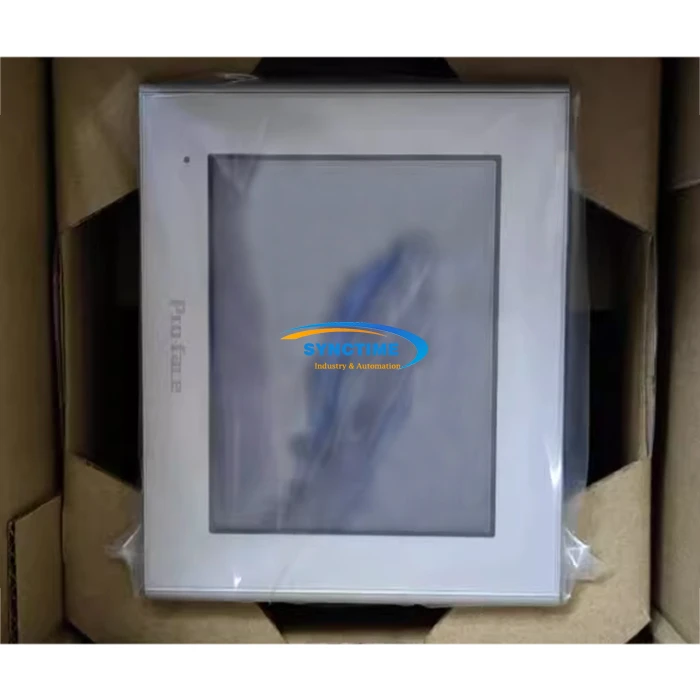
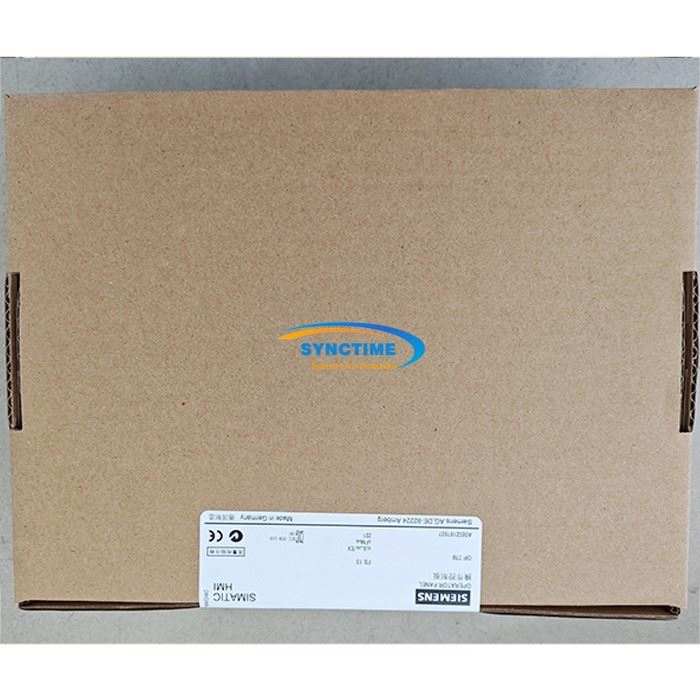
Here are some popular HMI touch screen models that you might be interested in:
- 6AV2123 - 2MB03 - 0AX0 HMI KTP1200 Basic Panel SIMATIC Siemens: This is a high - quality HMI touch screen with advanced features and reliable performance.
- GLC2300 - LG41 - 24V Touch Screen: It offers excellent touch sensitivity and a user - friendly interface.
- 6AV6641 - 0CA01 - 0AX0 6AV6641 - 0CA01 - 0AX1 Operator Panel OP77B: A well - known operator panel with a long - standing reputation for quality.
If you are experiencing slow response times with any of these models or other HMI touch screens, the troubleshooting steps outlined in this blog can help you resolve the issue.
Conclusion
Troubleshooting a slow - responding HMI touch screen requires a systematic approach. By checking the physical connections, assessing the operating environment, updating the firmware and software, analyzing the system resources, testing the touch screen calibration, and considering hardware issues, you can effectively diagnose and resolve the problem.
If you are in the market for a new HMI touch screen or need further assistance with your existing device, feel free to contact us for more information. Our team of experts is ready to help you select the right HMI touch screen for your needs and provide professional support and advice.
References
- Manufacturer's documentation for various HMI touch screen models.
- Industry best practices for HMI touch screen maintenance and troubleshooting.
Send Inquiry