


How to test the functionality of an HMI touch screen?
Oct 29, 2025
Leave a message
As a seasoned supplier of HMI touch screens, I understand the critical importance of ensuring that these devices function flawlessly. In today's industrial and commercial landscapes, HMI touch screens serve as the primary interface between users and complex systems, making their reliability and functionality non - negotiable. In this blog, I will share comprehensive insights on how to test the functionality of an HMI touch screen.
1. Visual Inspection
Before delving into more in - depth testing, a thorough visual inspection is essential. Start by examining the physical appearance of the HMI touch screen. Look for any visible cracks, scratches, or dents on the screen surface. Even minor damage can affect touch sensitivity and display quality. Check the bezel around the screen for signs of wear or misalignment. Loose or damaged bezels can lead to improper sealing, which may allow dust and moisture to enter the device, causing long - term functionality issues.
Inspect the connectors and cables. Ensure that all cables are securely plugged in and there are no signs of fraying or damage. Loose or damaged cables can result in intermittent connectivity problems, which may manifest as unresponsive touch inputs or display glitches.
2. Power - On and Initialization Testing
When powering on the HMI touch screen, observe the startup process carefully. The screen should boot up within a reasonable time frame. A significantly long startup time could indicate software issues or hardware problems such as a failing hard drive or insufficient memory.
Check the display for any artifacts, such as flickering, color distortion, or dead pixels. Dead pixels appear as small, unchanging dots on the screen and can be a sign of a defective display panel. To check for dead pixels, display a solid - color image (e.g., white, black, red, green, and blue) on the screen and visually inspect for any anomalies.
During the initialization process, the touch screen should calibrate itself automatically. If the calibration fails or the touch response seems inaccurate, it may be necessary to perform a manual calibration. Most HMI touch screens come with built - in calibration tools that guide the user through a series of touch points on the screen to ensure accurate touch detection.
3. Touch Sensitivity Testing
Touch sensitivity is one of the most critical aspects of an HMI touch screen. To test touch sensitivity, use a stylus or your finger to perform a series of simple touch actions. Start with single - touch taps at different locations on the screen. The screen should respond immediately and accurately register each tap.
Next, test multi - touch gestures, such as pinch - to - zoom and swipe. These gestures are commonly used in modern HMI applications, and their proper functionality is crucial for a seamless user experience. For example, when performing a pinch - to - zoom gesture, the screen should smoothly zoom in or out without any lag or incorrect scaling.
Test the touch sensitivity under different pressure levels. Some users may apply light pressure, while others may use more force. The touch screen should be able to detect both light and firm touches accurately. If the screen only responds to heavy touches, it may have a sensitivity issue that needs to be addressed.
4. Software Functionality Testing
The software running on the HMI touch screen plays a vital role in its overall functionality. Test all the software applications and features available on the device. Navigate through the main menu and sub - menus to ensure that all options are accessible and responsive.
If the HMI touch screen is integrated with other systems, such as industrial control systems or automation equipment, test the communication between the HMI and these systems. For example, if the HMI is used to control a manufacturing process, send commands from the HMI to the control system and verify that the system responds correctly.
Check for any error messages or warnings during software operation. Error messages can provide valuable clues about underlying issues, such as software bugs, compatibility problems, or communication failures.
5. Durability and Long - Term Testing
To simulate real - world usage, perform durability testing on the HMI touch screen. Use a touch - screen tester or a robotic arm to perform a large number of repetitive touch actions over an extended period. This helps to identify any potential wear - and - tear issues, such as a decrease in touch sensitivity or display degradation.
Expose the touch screen to different environmental conditions, such as temperature and humidity variations. Extreme temperatures can affect the performance of electronic components, and high humidity can cause corrosion. Test the touch screen in a temperature - controlled chamber at both high and low temperatures within the device's specified operating range. Observe how the touch sensitivity and display quality are affected by these environmental changes.
6. Compatibility Testing
If the HMI touch screen is intended to be used with specific software applications or hardware devices, conduct compatibility testing. Install and run the target software applications on the touch screen and ensure that they function correctly. Check for any compatibility issues, such as software crashes, incorrect data display, or unresponsive controls.
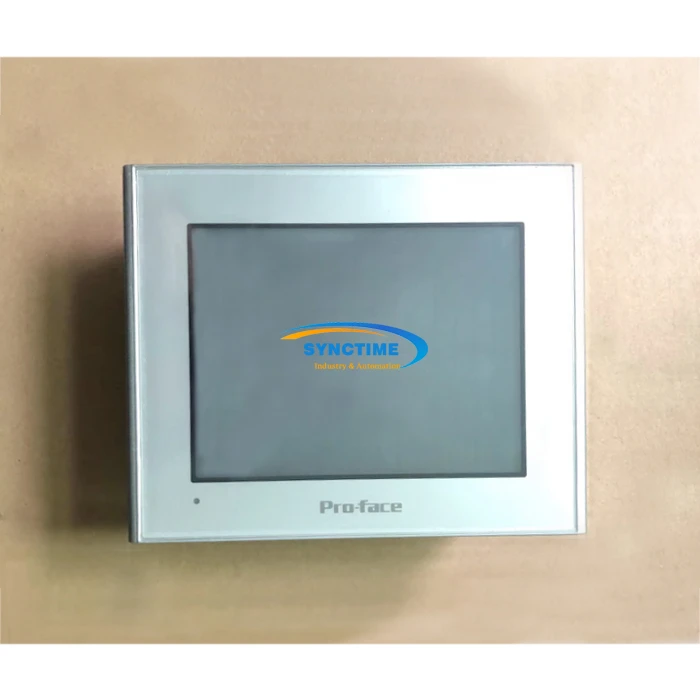
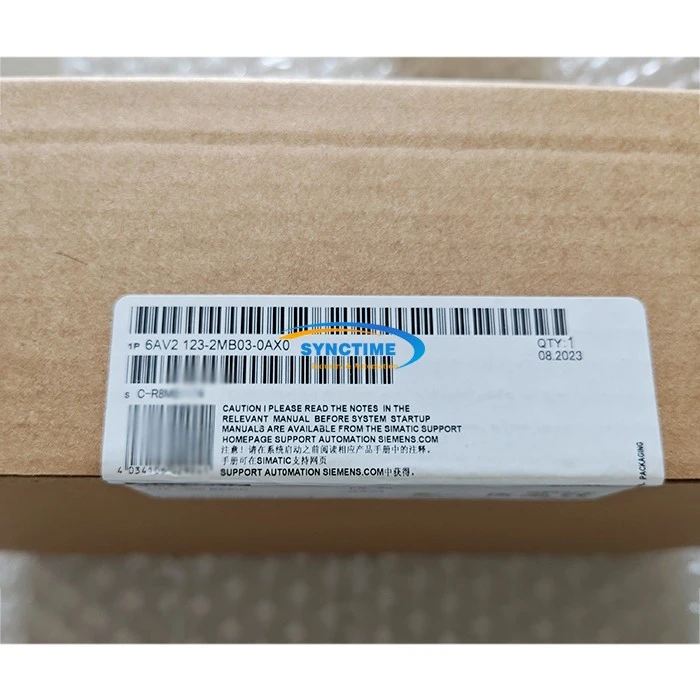
Test the HMI touch screen's compatibility with different operating systems. Some HMI devices support multiple operating systems, and it is essential to ensure that the touch screen works seamlessly with all the intended operating systems.
7. Security Testing
In today's digital age, security is a major concern for HMI touch screens, especially those used in industrial and critical infrastructure applications. Test the security features of the touch screen, such as password protection, user authentication, and data encryption.
Try to access restricted areas of the system without proper authorization. If the security measures are working correctly, the system should prevent unauthorized access and display appropriate error messages. Check for any vulnerabilities in the software that could be exploited by hackers, such as buffer overflows or SQL injection attacks.
8. Performance Benchmarking
To evaluate the overall performance of the HMI touch screen, perform performance benchmarking. Use benchmarking tools to measure key performance indicators such as touch response time, display refresh rate, and system processing speed. Compare the results with the manufacturer's specifications and industry standards.
A slow touch response time can lead to a frustrating user experience, especially in applications where quick and accurate touch inputs are required. A low display refresh rate can cause motion blur and make fast - moving images appear choppy. By benchmarking the performance, you can identify areas for improvement and ensure that the touch screen meets the required performance standards.
Conclusion
Testing the functionality of an HMI touch screen is a comprehensive process that involves multiple steps and considerations. By following the testing procedures outlined above, you can ensure that the HMI touch screen you are supplying meets the highest quality standards.
At our company, we offer a wide range of high - quality HMI touch screens, including the 6AV2123 - 2MB03 - 0AX0 HMI KTP1200 Basic Panel SIMATIC Siemens, GP2301 - TC41 - 24V GP2300 - TC41 - 24V HMI, and GT2510 - VTWD Features Human - Machine Interfaces. Our products undergo rigorous testing to ensure optimal functionality and reliability.
If you are in the market for HMI touch screens or have any questions about our testing processes, we encourage you to contact us for a detailed discussion. We are committed to providing you with the best - in - class products and comprehensive support to meet your industrial and commercial needs.
References
- "Human - Machine Interface (HMI) Handbook" by Peter G. Martin
- "Industrial Automation and Control Systems Security" by Joseph M. Weiss
- Manufacturer's documentation for various HMI touch screen models
Send Inquiry