


How to set up remote monitoring on KTP700?
Nov 10, 2025
Leave a message
As a supplier of KTP700, I often receive inquiries from customers on how to set up remote monitoring for this device. Remote monitoring is a crucial feature that allows users to access and control their industrial processes from anywhere, enhancing efficiency and reducing downtime. In this blog post, I'll guide you through the steps to set up remote monitoring on the KTP700, providing you with a comprehensive understanding of the process.
Prerequisites
Before you start setting up remote monitoring on the KTP700, you need to ensure that you have the following:
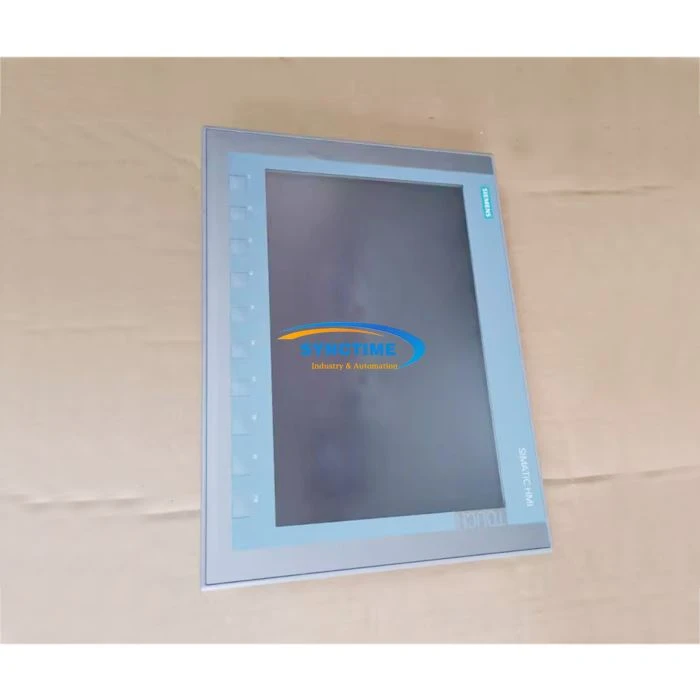
- KTP700 Device: You can purchase the 6AV2123-2GB03-0AX0 KTP700 HMI BASIC PANEL from our store. It is a reliable and feature-rich device suitable for various industrial applications.
- Network Connection: A stable network connection is essential for remote monitoring. Make sure your KTP700 is connected to a local network, and the network has internet access.
- Software Installation: Install the necessary software on your KTP700 and the monitoring device. This usually includes the WinCC Unified software for programming and configuration.
Step 1: Configure the KTP700 for Network Access
The first step is to configure the network settings on the KTP700. Here's how you can do it:
- Access the Settings Menu: On the KTP700 touch screen, navigate to the settings menu. This can usually be done by tapping on the settings icon.
- Select Network Settings: In the settings menu, find the network settings option. Here, you can configure the IP address, subnet mask, gateway, and DNS server settings. You can choose to use DHCP for automatic IP assignment or set a static IP address manually.
- Test the Network Connection: After configuring the network settings, test the connection to ensure that the KTP700 can communicate with other devices on the network. You can do this by pinging other devices or accessing a web page on the internet.
Step 2: Install and Configure the WinCC Unified Software
The WinCC Unified software is used to program and configure the KTP700 for remote monitoring. Follow these steps to install and configure the software:
- Download and Install the Software: Visit the official Siemens website to download the WinCC Unified software. Follow the installation wizard to install the software on your computer.
- Create a New Project: Open the WinCC Unified software and create a new project. Select the KTP700 as the target device for the project.
- Configure the Project Settings: In the project settings, configure the communication settings for the KTP700. This includes setting up the connection to the PLC or other devices that the KTP700 will monitor.
- Design the User Interface: Use the WinCC Unified software to design the user interface for the KTP700. You can add buttons, graphs, and other elements to display the monitored data and allow users to control the industrial processes.
- Upload the Project to the KTP700: Once you have completed the project design, upload the project to the KTP700. You can do this by connecting the KTP700 to your computer using a USB cable or an Ethernet cable and following the upload instructions in the WinCC Unified software.
Step 3: Set Up Remote Access
To enable remote access to the KTP700, you need to configure the following:
- VPN or Remote Desktop Connection: You can use a VPN (Virtual Private Network) or a remote desktop connection to access the KTP700 from a remote location. A VPN provides a secure connection between your remote device and the local network where the KTP700 is located.
- Port Forwarding: If you are using a router, you need to configure port forwarding to allow incoming connections to the KTP700. This involves opening the necessary ports on the router and forwarding them to the IP address of the KTP700.
- Security Settings: To ensure the security of your remote monitoring system, configure the security settings on the KTP700 and the network. This includes setting up passwords, enabling encryption, and using firewalls.
Step 4: Test the Remote Monitoring System
After completing the above steps, it's time to test the remote monitoring system. Here's how you can do it:
- Connect to the KTP700 Remotely: Use the VPN or remote desktop connection to connect to the KTP700 from a remote location. Enter the necessary login credentials to access the device.
- Monitor the Data: Once you are connected to the KTP700, you can monitor the data displayed on the user interface. Check if the data is accurate and up-to-date.
- Control the Industrial Processes: Try to control the industrial processes using the buttons and other elements on the user interface. Make sure that the control commands are executed correctly.
Troubleshooting
If you encounter any problems during the setup or testing of the remote monitoring system, here are some common troubleshooting tips:
- Check the Network Connection: Ensure that the KTP700 is connected to the network and that the network settings are configured correctly. You can try restarting the router or the KTP700 to resolve network issues.
- Verify the Software Configuration: Double-check the configuration of the WinCC Unified software and the project settings. Make sure that the communication settings are correct and that the project has been uploaded to the KTP700 successfully.
- Check the Security Settings: Ensure that the security settings on the KTP700 and the network are not blocking the remote access. You may need to adjust the firewall settings or the VPN configuration.
Conclusion
Setting up remote monitoring on the KTP700 is a straightforward process that can significantly enhance the efficiency and productivity of your industrial processes. By following the steps outlined in this blog post, you can easily configure the KTP700 for remote access and start monitoring and controlling your industrial processes from anywhere.
If you have any questions or need further assistance with setting up remote monitoring on the KTP700, or if you are interested in purchasing the 6AV2123-2GB03-0AX0 KTP700 HMI BASIC PANEL or other related products such as the 6AV2123-2MB03-0AX0 HMI KTP1200 Basic Panel SIMATIC Siemens and A951GOT-SBD Touch Screen, please feel free to contact us for procurement and negotiation.
References
- Siemens WinCC Unified User Manual
- KTP700 Technical Documentation
Send Inquiry